


Blog Post
Search Engine Optimization

Nadine
Wolff
published on:

Visualizing Internal Linking with Gephi – Part 2: Your Website in Color
Table of Contents
Visualizing internal links – Gephi makes it possible. In our first article on Gephi, we explained how to properly prepare the necessary data. In this article, the spotlight is on Gephi itself and how you can effectively visualize your website's internal linking structure.
Visualizing internal linking
Actionable steps for internal linking
Internal link visualization – Summary
Visualizing internal linking
With our prepared data table ready, we can now launch Gephi. After opening the program, you can start a new project directly via the pop-up window. In the top menu, go to the Data Laboratory to import your table.
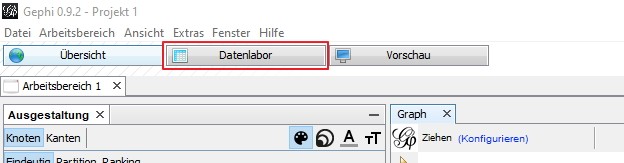
Fig. 2: Data Laboratory in the menu
From there, you can select your table under "Import Spreadsheet." To proceed, make sure the following settings are selected—these should already be set by default.
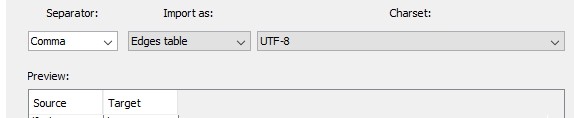
Fig. 3: Settings for importing the table
Next, click "Next" and then "Finish." The import report usually displays some errors, but you can safely ignore them. You can complete the process by selecting "Graph Type: Directed" and choosing "New workspace."
Displaying the internal links
In the Overview tab, you can now display the internal linking structure. Right now, it probably looks pretty messy! Each of these dots represents a specific page, and each line connecting to another dot represents an internal link. Now you can redesign the alignment at the bottom left under Layout. There are several models to choose from. When visualizing larger domains, we've had the best results with the Yifan Hu Proportional model. Depending on your domain, other settings might work better, but here’s our recommendation:
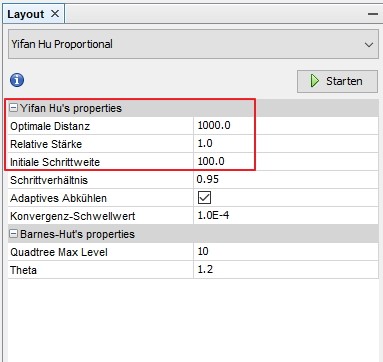
Fig. 4: Settings in Yifan Hu Proportional
Here is what the adjusted metrics mean:
Optimal distance: Overall size of the graph
Relative strength: Distance between the points (nodes)
Initial step: Speed of the calculations (Gephi recommends 10% of the Optimal distance)
Click the "Run" button to start calculating the layout, and you'll quickly start to see an initial structure emerge. You should let this run 3 to 4 times; after that, the calculation should be mostly complete and the visualization finalized.
However, this graphic isn't quite ready for real analysis yet, let alone for planning optimizations. That's where modularity and PageRank come into play.
Internal PageRank
Mentioning PageRank might make a few SEOs shudder and feel like they’ve been transported back a decade. But unlike Google's original PageRank—which indicates how important a domain is across the entire internet (to put it very simply)—internal PageRank shows the most important pages within your own domain. Pages with a high PageRank are both frequently linked to internally and linked to from other pages that carry a high PageRank themselves.
You can calculate internal PageRank on the right side under Statistics. If you don't see this panel, you may need to activate it first. You can bring it back via the main menu under Window. By the way, this applies to all dashboard views.
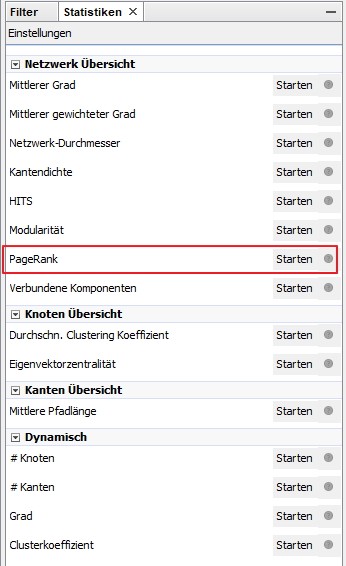
Fig. 5: Calculating internal PageRank
When calculating PageRank, it's best to use the following settings:
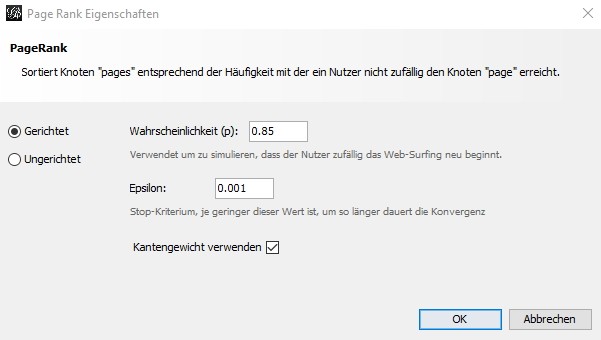
Fig. 6: Internal PageRank settings
This helps better simulate the website's real-world link dynamics. Once it's done, you can simply close the window. The data has been calculated, but nothing visually changes just yet. However, we can now use this calculated data to adjust the node sizes! To do this, go to the Appearance panel at the top right and set the following parameters:
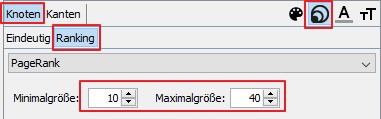
Fig. 7: Adjusting node size in Gephi
Click Apply to save the settings, and your visualization will transform: the larger a node is displayed, the stronger its internal PageRank. But which page is behind which dot? To show the page names, just apply the following settings:
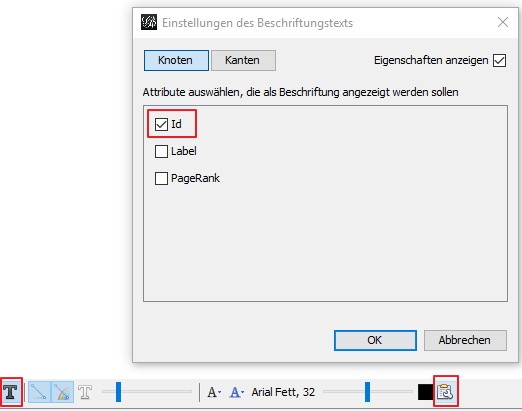
Fig. 8: Showing pages in Gephi
If several nodes are clustered together and you'd like a closer look at a specific one, simply left-click and drag it out of the cluster. This allows you to customize the view for a clearer overview. Don't worry—you can always restore the original layout by running the layout calculation again.
Visualizing URL clusters
Now the individual nodes are organized, and their sizes clearly show the focal points of your domain. But before analyzing the data and taking action, we need to identify topical clusters. In this context, actual page content is secondary, as strong topical clusters naturally reflect in internal linking. For this, we'll use Modularity, located in the Statistics panel right above PageRank.
Using the internal link structure, Gephi calculates which pages belong together to form a cluster. The default modularity settings work great here. Next, we can color-code the nodes. Here’s how to do it:
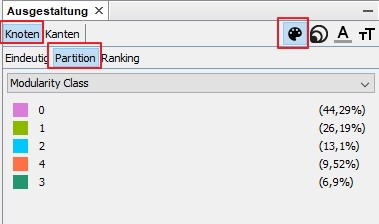
Fig. 9: Displaying clusters in Gephi
Thanks to modularity, you can now clearly see the distinct clusters on your website based on your internal linking. The more nodes that share a color and the more distinct the clusters appear, the better they are linked together as a cohesive unit. And because the tool relies purely on calculation, the result is completely objective.
Here’s an example with a quick takeaway:
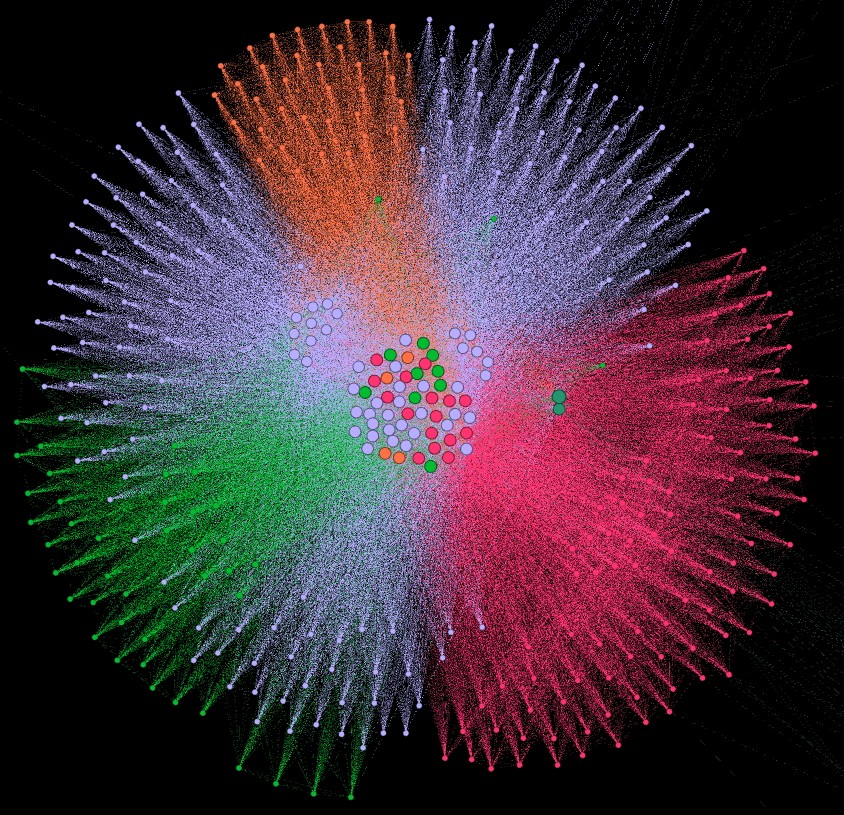
In the example image, you can see a very solid internal linking structure. Several clusters stand out clearly, and there are few tiny, fragmented clusters. However, the purple cluster isn't consistently interlinked, which is why its nodes are spread apart. Additionally, the blue and purple clusters bleed into one another, suggesting a lack of clear separation between topics. In this case, the topic architecture should be revisited.
More domain examples
While the previous example illustrates clustering well, here are two more examples to give you a better feel for what Gephi can reveal.
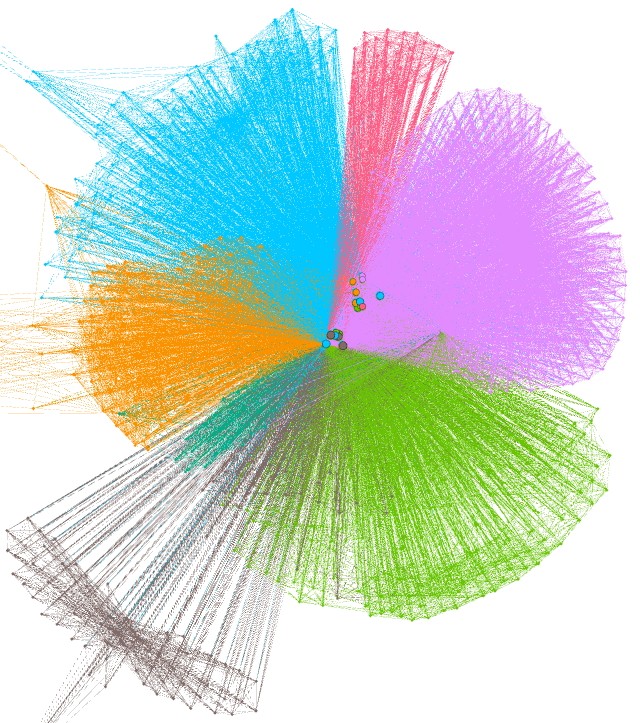
Fig. 10: A positive internal linking example
Here, the domain's structure is immediately clear. Sections are neatly separated with only a few overlapping connections. The domain demonstrates a logical and well-structured internal link architecture that only needs minor, fine-tuned adjustments.
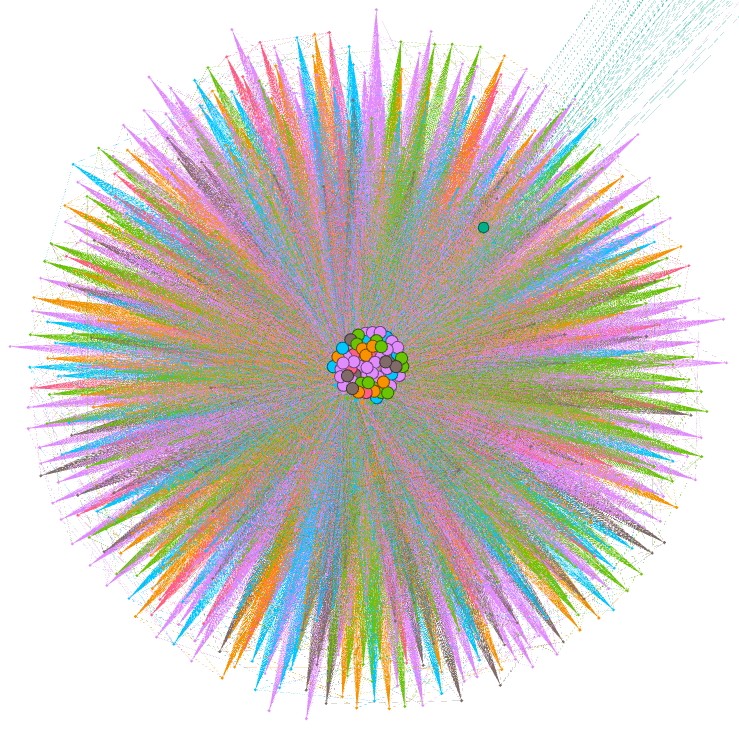
Fig. 11: A negative internal linking example
In this case, no clear clusters can be seen—the tool struggles to find meaningful connections. Nearly all pages appear equally important, and the pages clustered in the center are heavily linked primarily due to site-wide main navigation. Here, the entire internal linking strategy could use a complete overhaul.
Actionable steps for internal linking
At this stage, your website moves beyond abstract theory into a clear visual map. Your internal linking setup might be well-structured, or it might just exist to make sure every page is somehow reachable. While basic access is necessary, an effective internal linking strategy should do much more to boost your search rankings.
Let’s take it a step further. If you already have a strategy in place and can see clusters forming in Gephi, how does the tool help you move forward? The calculated data looks great visually, but the real value comes from analyzing it and taking concrete steps. To do this, you can export the data from the Data Laboratory.
Improving internal PageRank
Once exported, you have a list showing the internal PageRank for every URL. From here, ask yourself a few key questions:
Which page is the most important according to these calculations?
Which pages should have a high PageRank?
How can I best influence their PageRank?
Your sitemap.xml should already reflect your page priorities, which you can use as a benchmark. Defining your own priorities is also always a smart move (after all, the pages generating the most revenue should naturally have a strong internal PageRank, right?). Here are some actionable steps you might consider:
Pages with a high internal PageRank that aren't actually strategically important should be linked to less frequently, or leveraged to pass PageRank to other high-value pages. Reducing non-essential internal links can help here.
High-PageRank pages shouldn't include excessive external links, as this dilutes internal link equity.
Important pages that currently have a low PageRank should receive more internal links from relevant content.
Clearly signaling to Google which pages matter most through strategic internal linking is essential.
Optimizing topic clusters
Just like PageRank, modularity data can be exported as well. This raises a few other important questions:
How many clusters are there?
Which pages belong in the same cluster?
How can I better guide cluster formation?
A comprehensive keyword research plan should already outline your topical clusters, which you can now cross-reference. If not, map out your topic clusters to decide which URLs belong together. You might want to consider the following actions:
Pages that share a topic but appear in separate clusters should receive more internal links from within their primary cluster.
Small, isolated clusters that really belong to a larger topic group should get more links pointing to them from the main cluster.
The goal is to maintain as few distinct clusters as necessary while grouping all closely related pages together within the same cluster.
Internal link visualization – Summary
Gephi turns an abstract concept like internal linking into something tangible. The tool unlocks a fresh perspective for site analysis, though it requires proper data preparation and a structured approach. Once that's in place, you can identify clear optimization opportunities and strengthen your internal links. Keep in mind that a deep dive like this is most rewarding when you already have a linking strategy ready to analyze—otherwise, the visualization won't offer as many actionable takeaways.
How can we help?
Are you looking for an online marketing agency to help visualize and refine your internal link structure? We'd love to assist you every step of the way, from high-level strategic planning to hands-on execution. Feel free to reach out to us anytime!
Nadine
Wolff
As a long-time expert in SEO (and web analytics), Nadine Wolff has been working with internetwarriors since 2015. She leads the SEO & Web Analytics team and is passionate about all the (sometimes quirky) innovations from Google and the other major search engines. In the SEO field, Nadine has published articles in Website Boosting and looks forward to professional workshops and sustainable organic exchanges.
