


Blog Post
Search Engine Optimization

Nadine
Wolff
published on:
robots.txt – A Stop Sign for Search Engine Bots?
Table of Contents
Search engine bots (also known as robots, spiders, or user agents) crawl the web daily in search of new content. Their mission is to analyze and index websites. Before crawlers can begin their work, however, they first have to check the robots.txt file. The so-called "Robots Exclusion Standard Protocol" was first published in 1994 and governs how search engine bots behave on websites.
Unless specified otherwise, bots can crawl your website freely. Creating a robots.txt file, however, can also help protect certain pages or individual elements from the eyes of web spiders. In this article, you will learn when creating a robots.txt file makes sense and what you should keep in mind when generating and testing it.
When a search engine bot visits your website, its goal is to crawl as many pages and pieces of content as possible. With the right directives in your robots.txt file, you can directly communicate to search bots which content is relevant. In other cases, you can protect sensitive data, exclude private directories, or temporarily hide testing environments.
First things first: there is no guarantee that crawlers will stick to the rules you set in your robots.txt file! The directives are merely guidelines and cannot force crawlers to behave in a specific way. This means a robots.txt file won't stop hackers and scrapers. Still, experience shows that at least the most well-known and common search engines, like Google or Bing, do follow the rules. For an in-depth look at how crawling works, check out our blog post "Crawling – the spider navigating your website".
Also, disallow directives in a robots.txt file aren't necessarily the best choice if your goal is to prevent a page from being indexed by search engines. Websites with strong backlink profiles can still show up in search results. In these cases, it's better to protect the affected pages or files using the meta robots "noindex" tag instead.
The robots.txt file is always located in the root directory of your website. You can access it quite easily: just type the website's URL into your browser's address bar and append /robots.txt to the end of the domain. If you don't have one yet, there are several ways to properly create and test your robots.txt file.
Creating a robots.txt file – getting the syntax right is key
You can find plenty of free tools and generators online that will create a robots.txt file for you automatically. If you'd rather skip the generator and build it yourself, you can simply use a plain text editor or Google Search Console. Google Search Console can also be used afterward to test whether your robots.txt file was set up correctly.
Every robots.txt file contains "records." Each record, in turn, consists of two parts. To ensure the rules you define work as intended, you need to use the right syntax.
To issue directives and restrictions, you first need to address the respective crawler using the "User-agent" command. In the second part, you introduce further rules for the bots using the "Disallow" directive. If a page or element isn't blocked via Disallow, the user agent will crawl all content by default.
The basic structure of a record looks like this:
User-agent: *
Disallow:
Another option is using the "Allow" directive, which—unlike Disallow—explicitly permits crawling:
User-agent: *
Allow: /
With these instructions, all crawlers are allowed to access all resources. The asterisk (wildcard) acts as a variable for all crawlers. All directives are processed from top to bottom. It's also essential to pay close attention to case sensitivity when writing your rules. In the following example, only Googlebot is restricted from accessing a specific subpage on the website:
User-agent: Googlebot
Disallow: /subpage.html
The "User-agent" directive can only address one search engine bot at a time. If you want to target different bots, you'll need another block in your robots.txt file. This block follows the same basic structure, separated by a blank line:
User-agent: Bingbot
Disallow: /directory1/
User-agent: Googlebot
Disallow: /shop/
In this example, Bingbot is not allowed to access Directory 1, while Googlebot is restricted from crawling the site's shop. Alternatively, you can also list the same directives for different bots directly beneath each other:
User-agent: Bingbot
User-agent: Googlebot
Disallow: /shop/
Overview of the most popular search engine crawlers:
How to properly exclude website content
As the recent examples show, paths for files and directories usually start with a forward slash "/" right after the domain, followed by the path. You should also remember to include a trailing slash at the end of directory names. Keep in mind, however, that with a trailing slash, bots can still crawl subdirectories within it. If you want to prevent this, simply leave off the trailing slash.
The original protocol didn't include a way to explicitly allow individual pages or elements for indexing. However, you can use Allow to grant bots access to specific subdirectories or files within an otherwise blocked directory:
User-agent: *
Disallow: /images/
Allow: /images/public/
When blocking specific file types (such as PDFs or images), we recommend adding a "$" to the end of the file extension. This signals that no other characters should follow:
User-agent: *
Disallow: /*.gif$
It's also a great idea to include a reference to your sitemap in the robots.txt file. To learn why using a sitemap is beneficial for your website and how to set one up properly, check out our blog post "The Perfect Sitemap". Adding your sitemap only takes a simple extra line:
User-agent: *
Disallow:
Sitemap: https://YourWebsiteName.com/sitemap.xml
How to properly test your robots.txt file
Once you've created your robots.txt, you should definitely test it, as even tiny mistakes can cause crawlers to ignore the file entirely. You can use Google Search Console to verify whether your syntax is correct. The robots.txt Tester evaluates your file just like Googlebot would, checking if the relevant files are blocked properly. All you need to do is enter your page's URL into the text field at the bottom of the tool. You can even use the robots.txt Tester before uploading the file to your root directory—simply paste the syntax directly into the input field:
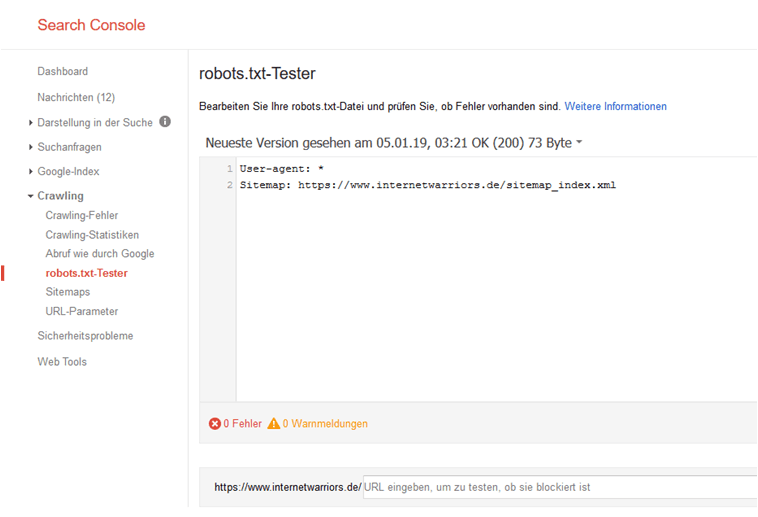
Figure 1: Screenshot of the Search Console robots.txt Tester
Once there are no more error messages, you're good to upload the robots.txt file to your website's root directory. At the time this article was written, we used the robots.txt Tester from the classic version of Google Search Console as an example. It's worth noting that the robots.txt Tester is not currently available in the new version of GSC.
Conclusion:
The robots.txt file sets the overarching ground rules for search engine bots and can help you hide pages or specific files from crawlers. However, there's no guarantee that every bot will follow these rules. If you want to be completely safe and prevent a page from being indexed, you should also use the "noindex" meta tag. When building your robots.txt, using the correct syntax is essential. You can easily test and verify your file using tools like Google Search Console.
How can we help?
Looking to implement a robots.txt file on your website? Do you have questions about creating, testing, or integrating it? We'd be happy to support you with answers and hands-on help. We look forward to hearing from you!
Nadine
Wolff
As a long-time expert in SEO (and web analytics), Nadine Wolff has been working with internetwarriors since 2015. She leads the SEO & Web Analytics team and is passionate about all the (sometimes quirky) innovations from Google and the other major search engines. In the SEO field, Nadine has published articles in Website Boosting and looks forward to professional workshops and sustainable organic exchanges.
