


Blog Post
Web analytics

Thorsten
Abrahamczik
published on:

The recording feature of Google Tag Assistant
Table of Contents
Many companies integrate Google Analytics into their website as a free web analytics tool to get an overview of their visitor numbers. However, this is often where the problems begin. In many cases, the tool or its code is simply copied directly into the page's source code.
This often overlooks the fact that the Google Analytics code needs to be placed in a specific spot, and that IP addresses must be anonymized.
It's also rarely considered that, in certain cases, the referrer—meaning the link or source through which a user arrived at the site—isn't passed along correctly. When this happens, the site visitor is recorded as direct traffic rather than referral traffic. As a result, users quickly find themselves working with skewed data. To identify and avoid these issues, Google offers Google Tag Assistant, a handy Chrome browser extension, as previously mentioned in the blog post The best tools for getting started with web analytics.
The features of Google Tag Assistant
First and foremost, Google Tag Assistant allows you to view information about all Google tags. These might include the following examples, as shown in the overview in Screenshot 1. You'll also see the button for the record feature there.
Google Analytics,
Remarketing,
Conversion Tracking,
DoubleClick, etc.
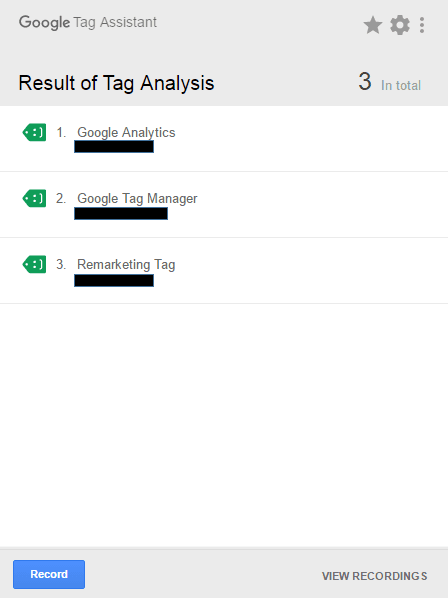
Figure 1: Google Tag Assistant overview
For each individual tag, you can pull up detailed information about its current status. Using a color-coded system, the browser extension indicates whether the tag was implemented correctly (green), if there are minor deviations from implementation recommendations (blue or yellow), or if there are critical issues causing the tag to fail (red). The level of detail provided can be customized for each type of tag in the Tag Assistant settings.
The record feature
As Screenshots 1 and 2 illustrate, the tool includes a record feature designed specifically for Google Analytics, enabling precise analysis across multiple pageviews. This makes it easy to see whether your data is being captured and processed correctly for Google Analytics. The big advantage of this approach: data is measured individually for all active Google Analytics tags. This means you can examine not just pageviews, but also event tracking or e-commerce tracking, for example. In short, it helps you spot errors that would otherwise require considerably more effort to uncover.
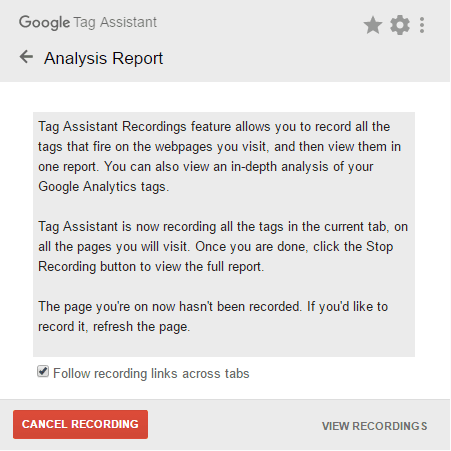
Figure 2: Recording has started
Using this feature, we were able to discover an error in a client's cross-domain tracking, for instance. While pageview tracking was configured properly, several event tags were not. As a result, the referrer was passed along correctly for the second domain's pageview, but no referrer was sent for any of the event tags, causing them to fall back to "Direct/None." This verifiably distorted the key metrics in Google Analytics.
After making the necessary adjustments to the event tags, the referrers were passed along correctly again, and the metrics flowed smoothly back into Google Analytics.
Another great advantage is the ability to link Tag Assistant recordings directly to Google Analytics. In the Google Tag Assistant evaluation area, you can select specific views from your Google Analytics account for this purpose. You can also send specific location data to verify whether certain data isn't reaching Google Analytics—due to IP address filters, for example. If that's the case, you can tweak your Google Analytics configuration at the same time and update the recording with a single click of the refresh button. There's no need to rerun the recording to see the results of your changes right away. Screenshot 3 shows part of the evaluation area below:
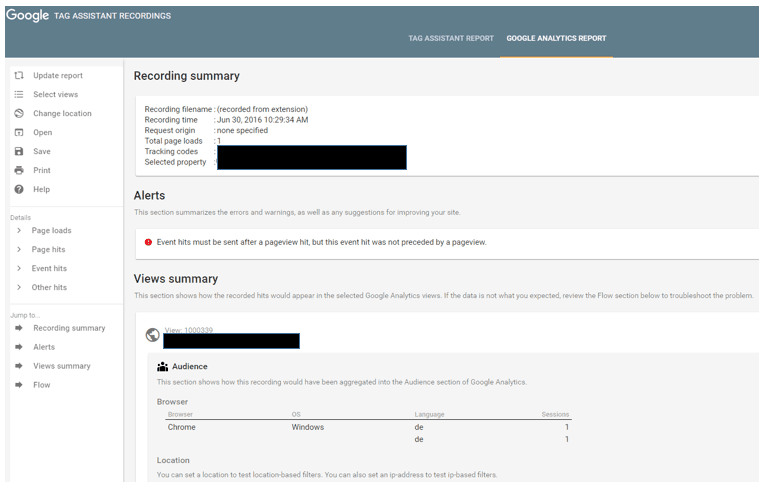
Figure 3: Evaluation overview of the Google Analytics record feature in Google Tag Assistant
What we can do for you
At internetwarriors, Google Tag Assistant and its record feature are among our standard go-to tools for web analytics and SEA. We’d be happy to review your Google implementation, highlight potential errors, and fix them for you if you'd like. Boost the quality of your reporting with more accurate metrics—and optimize your marketing budget along the way. Feel free to reach out to us!
